
Back
Trades Page
Overview
Columns
Sorting
Selecting trades
Bulk operations
Summary bar
Trade detail
Creating a trade manually
Downloading trades
Back
Trades Page
Overview
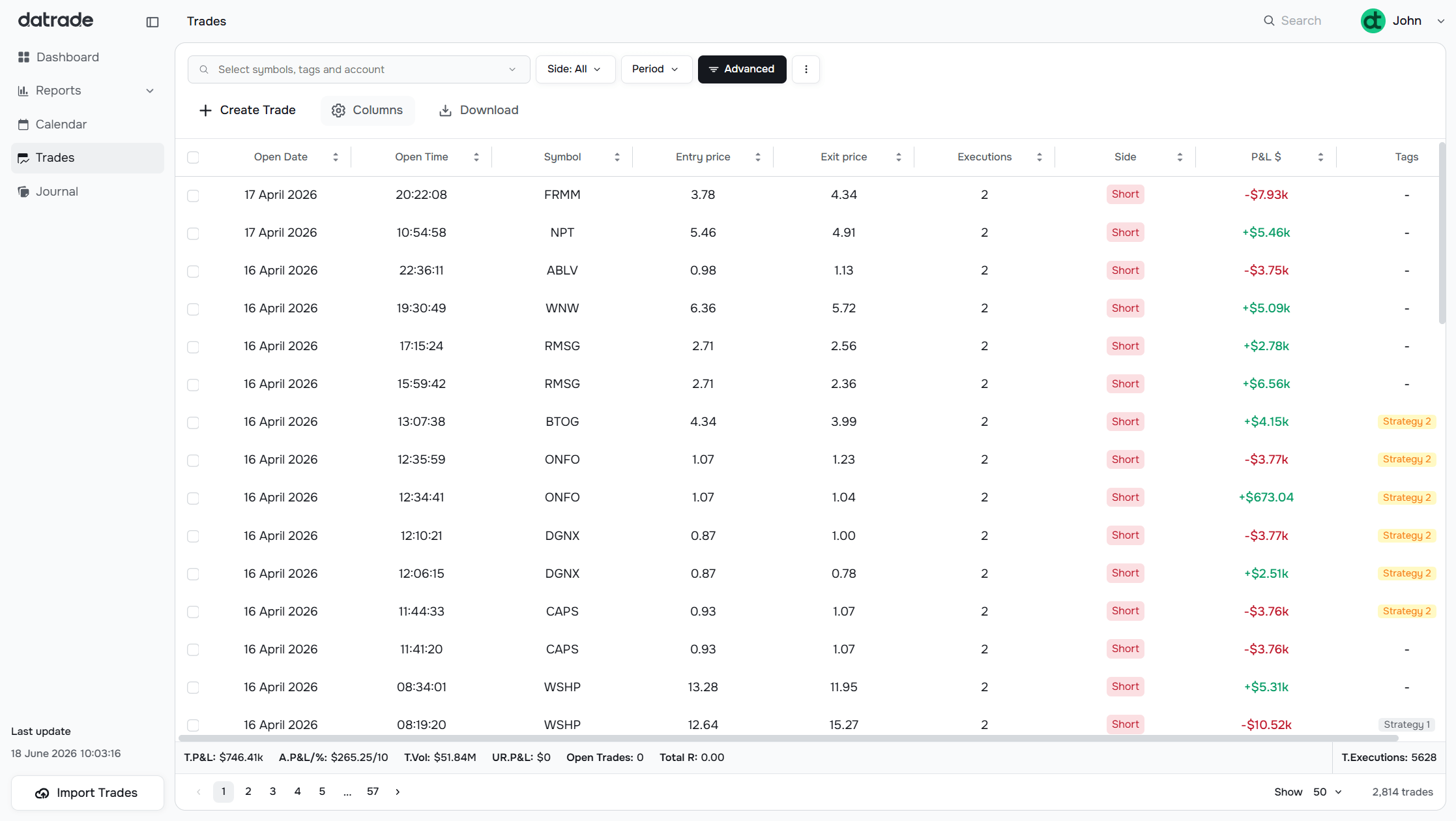
The Trades page is a paginated, sortable, and fully configurable table of all your imported trades. It also supports manual trade creation, bulk operations, and individual trade detail.
Columns
By default, the table shows: Open Date, Open Time, Side, Symbol, P&L $, Entry Price, Exit Price, Tags, and Executions.
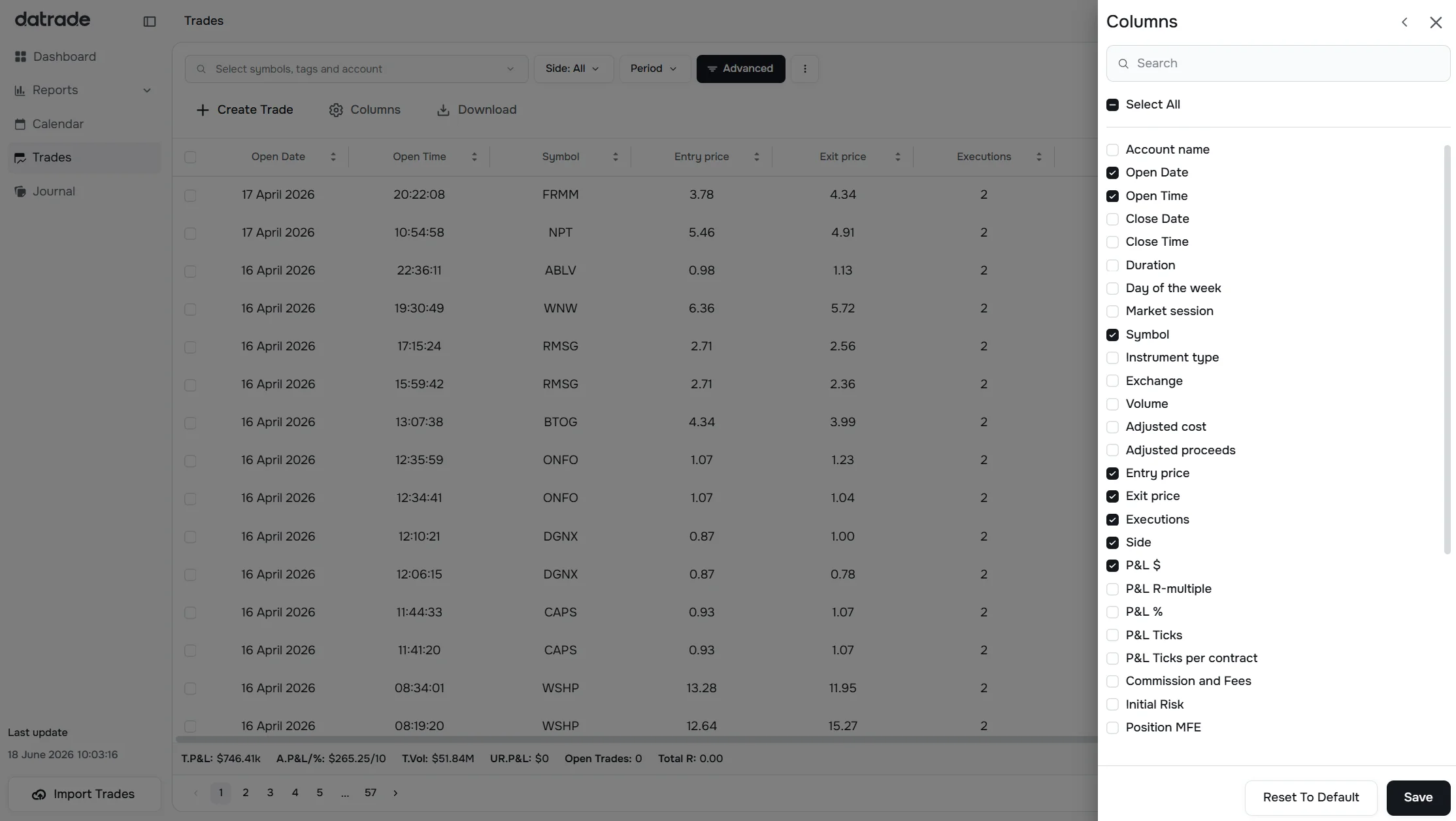
Click Columns in the toolbar to open the column settings panel. You can toggle any column on or off. All available columns:
| Column | What it shows |
|---|---|
| Account name | Trading account the trade belongs to |
| Open Date | Date the trade was opened |
| Open Time | Time the trade was opened |
| Close Date | Date the trade was closed |
| Close Time | Time the trade was closed |
| Duration | Hold time from open to close |
| Day of the week | Which day of the week the trade was taken |
| Market session | Pre-market / regular / after-hours session |
| Symbol | Ticker or instrument name |
| Instrument type | Stock, option, futures, crypto, etc. |
| Exchange | Exchange the trade was executed on |
| Volume money | Dollar volume of the trade |
| Volume qty | Number of shares/contracts traded |
| Adjusted cost / proceeds | Cost and proceeds with adjustments |
| Entry price | Average entry price |
| Exit price | Average exit price |
| Executions | Number of individual fills |
| Side | Long or Short |
| P&L $ | Net profit/loss in dollars |
| P&L R-multiple | P&L expressed as a multiple of initial risk |
| P&L % | P&L as a percentage of cost |
| Commission and Fees | Commissions and fees deducted |
| Initial Risk | Planned max loss at entry |
| Position MFE / MAE | Max favorable/adverse excursion (position $) |
| Price MFE / MAE | Max favorable/adverse excursion (price) |
| Best Exit P&L $ / R / % | Theoretical best exit metrics |
| Best exit price / time | The optimal exit point |
| Exit efficiency | % of the best possible exit you captured |
| Notes | Trade notes preview |
| Tags | Tags applied to the trade |
Columns can be reordered by dragging them in the header. The column order and visibility are saved automatically.
Sorting
Click any column header to sort the table by that column. Click again to reverse the sort. Sorting happens server-side on the main Trades page.
Selecting trades
Each row has a checkbox. Check one or more rows to select them. You can also:
- Check the header checkbox to select all trades on the current page
- Press Escape to clear all selections
Tip: After selecting at least one row with a click, use the ↑ / ↓ arrow keys to move between rows and Space to toggle the checkbox — no mouse needed for multi-select.
Bulk operations
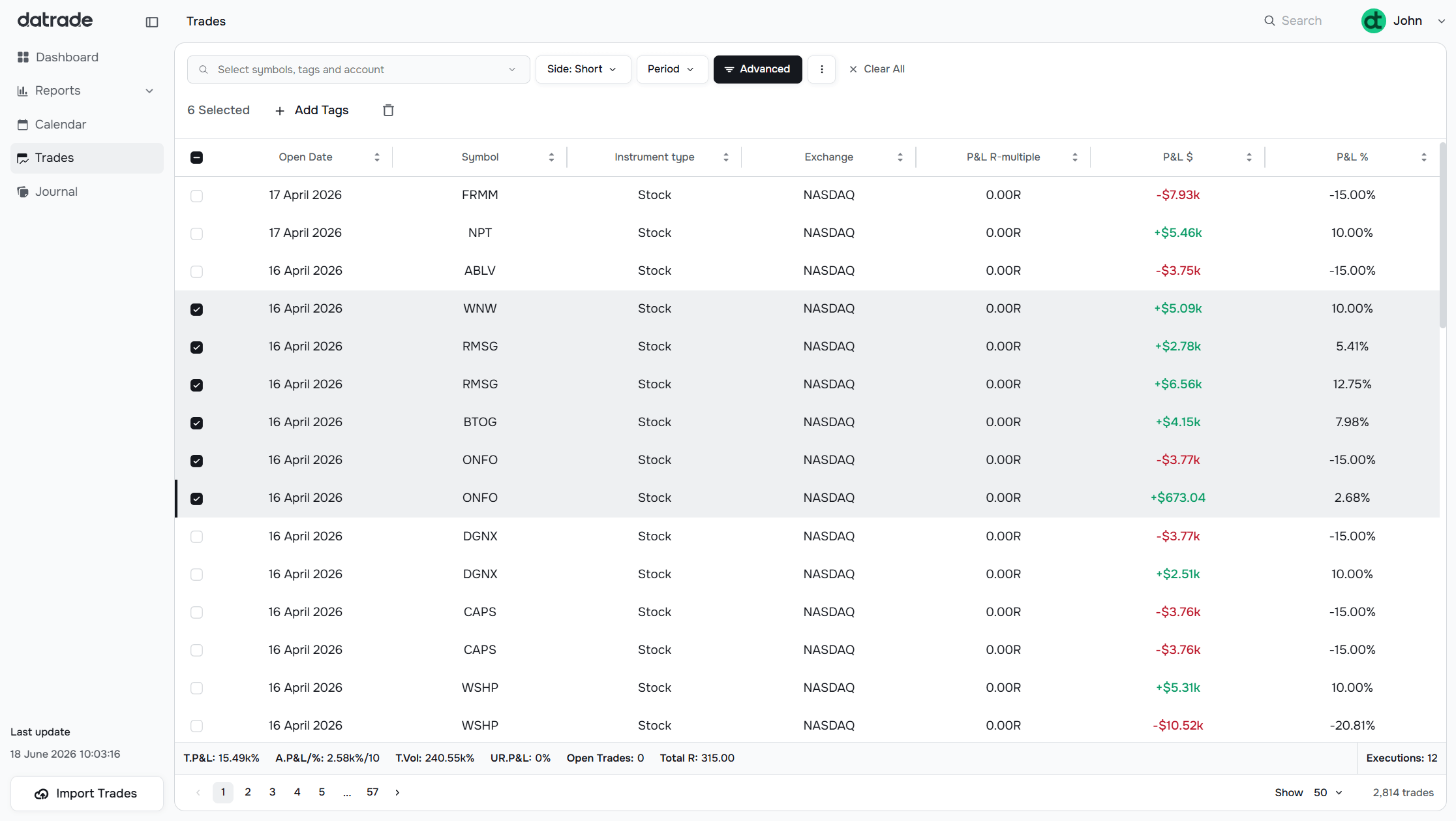
When trades are selected, the toolbar switches to bulk mode showing the count of selected trades and two actions:
- Add Tags — assign one or more tags to all selected trades at once (see Tags Management)
- Delete (trash icon) — delete all selected trades after a confirmation dialog
The summary bar at the bottom recalculates to reflect only the selected trades when a selection is active.
Summary bar
The bar pinned to the bottom shows aggregate stats for the current view:
| Metric | What it shows |
|---|---|
| T.P&L | Total realized P&L |
| A.P&L/% | Average P&L per trade / as percentage |
| T.Vol | Total dollar volume |
| UR.P&L | Unrealized P&L (open trades) |
| Open Trades | Number of currently open positions |
| Total R | Total R-multiple earned |
| T.Executions | Total execution count |
When trades are selected, all metrics reflect only the selected subset.
Trade detail
Click any row to open the Trade Detail page for that trade. It shows:
- Stats grid: Shares Traded, Closed Gross P&L, Gross Return, Commissions/Fees, Closed Net P&L, Net Return, Best Net Exit P&L, Position MFE/MAE, Price MFE/MAE, Exit Efficiency — see Metrics Glossary for definitions
- Note: a 200-character text area with an Add Template button to pre-fill from your notes templates
- Trade Running P&L and Day Running P&L line charts — the Day Running P&L shows cumulative P&L across all trades on the same day, with the current trade highlighted
- Executions table: individual fills with Date, Time, Symbol, Qty, Price, Position, Commissions/Fees
- Initial Risk field in the toolbar — edit and save the planned risk for this specific trade (see Risk Settings)
Navigate between trades using the Prev and Next buttons in the top-right corner without returning to the list. Use Back to return to the table.
Creating a trade manually
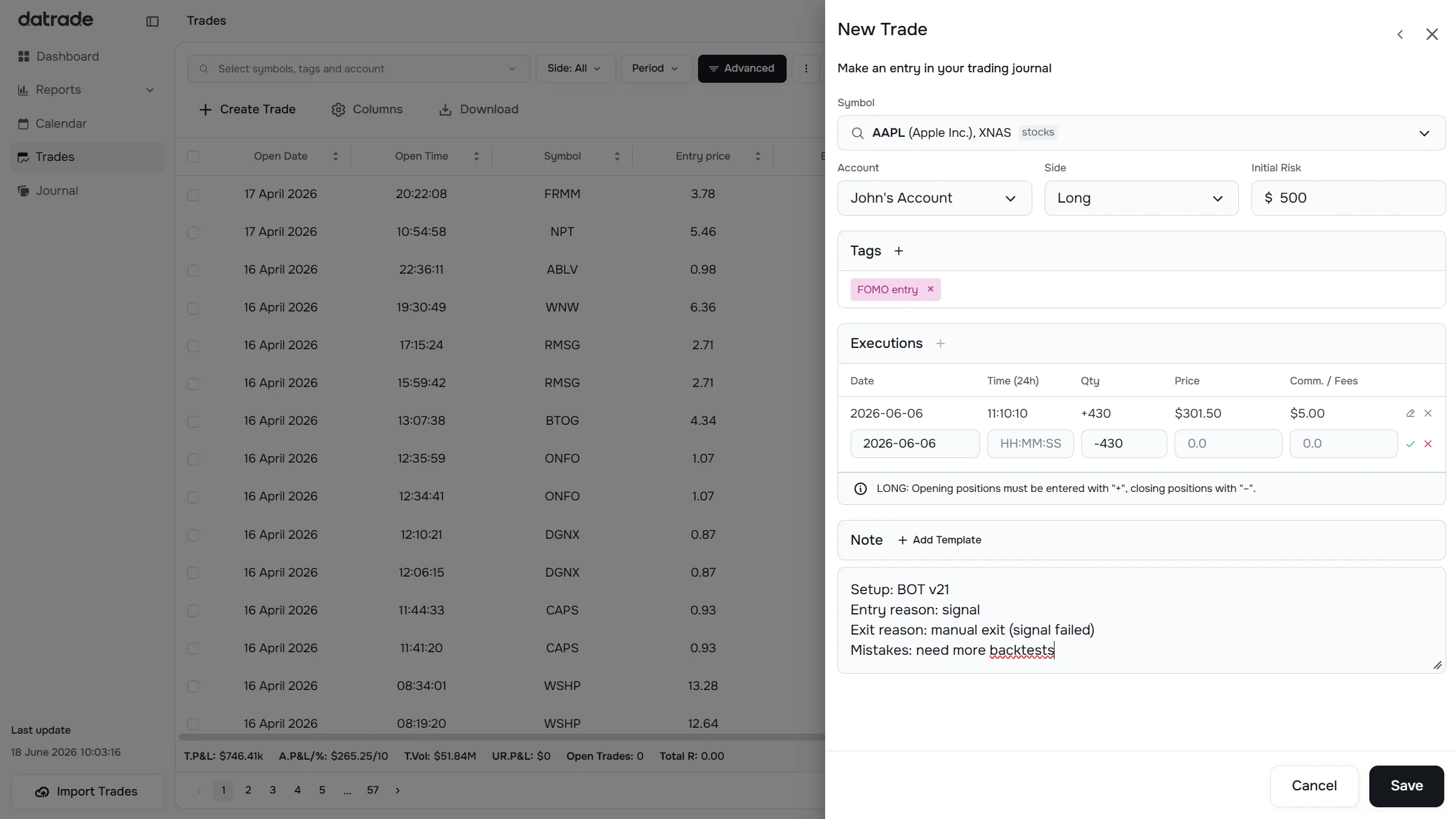
Click Create Trade in the toolbar to open the manual trade entry modal. Fill in:
- Symbol — searchable dropdown with live ticker lookup
- Account — the trading account to assign the trade to (manage in Trading Accounts)
- Side — Long or Short
- Initial Risk — your planned max loss for this trade
- Executions — one or more fills, each with Date, Time, Qty, Price, and Commissions/Fees
- Note — optional trade note with template support
At least one execution is required. Add more executions with Add Execution.
Downloading trades
Click Download to export all trades (matching current filters) as a CSV file named trades.csv.
Have a question?
Let us help!
To get the best response, follow these steps when submitting your request:
Be Clear
Briefly describe the issue and any key details, like the feature used or an error message
Add Context
Explain what you were trying to do and what led to the issue
Attach a Screenshot (Optional)
A visual reference can speed up troubleshooting
We'll review your request and get back to you soon!
Get latest updates
on Datrade
Disclaimer: Datrade is not an investment advisor or signal provider. All market data and analytics are provided for informational purposes only and do not constitute financial advice or trading recommendations. Past performance is not indicative of future results, and no performance outcomes are guaranteed. Users are solely responsible for their trading decisions and actions; Datrade accepts no liability for any losses incurred from use of our data or content. Use of this site constitutes acceptance of our Terms of Service and Risk Disclosure.