
Back
How to import trades
Overview
Step-by-step
Step 1 — Export from your broker
Step 2 — Open the Import screen
Step 3 — Select broker and account
Step 4 — Upload the file
Step 5 — Click Import Trades
Processing time
Back
How to import trades
Overview
Datrade accepts trade data from broker-specific file exports. The import screen shows all currently supported brokers — if yours isn't listed, email contact@datrade.io and it will be added.
Accepted file formats: CSV and TLG.
Step-by-step
Step 1 — Export from your broker
Log in to your broker platform and navigate to trade history or account statements. Export the data for the date range you need.
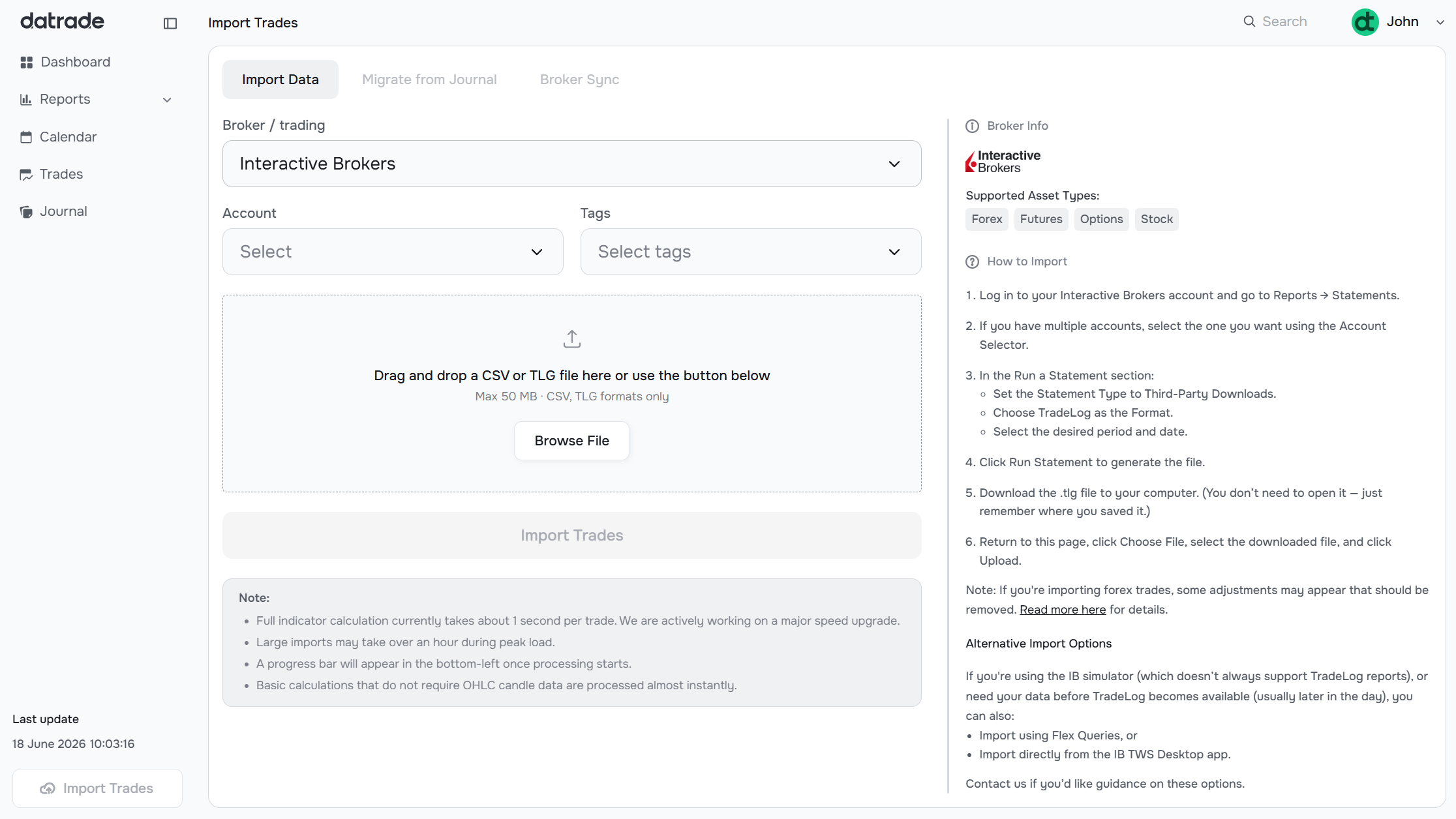
Once you select your broker inside Datrade, the right side of the import screen shows broker-specific export instructions.
Step 2 — Open the Import screen
Go to Trades → Import in the sidebar, or click the Import Trades button at the bottom-left.
Step 3 — Select broker and account
Pick your broker from the Broker / trading dropdown. Two more fields will appear:
- Account — which trading account this import belongs to. Manage accounts in Trading Accounts.
- Tags — optionally assign one or more tags to every trade in this file. Useful for marking a batch by strategy or session type. Set up your tags in Tags Management.
Step 4 — Upload the file
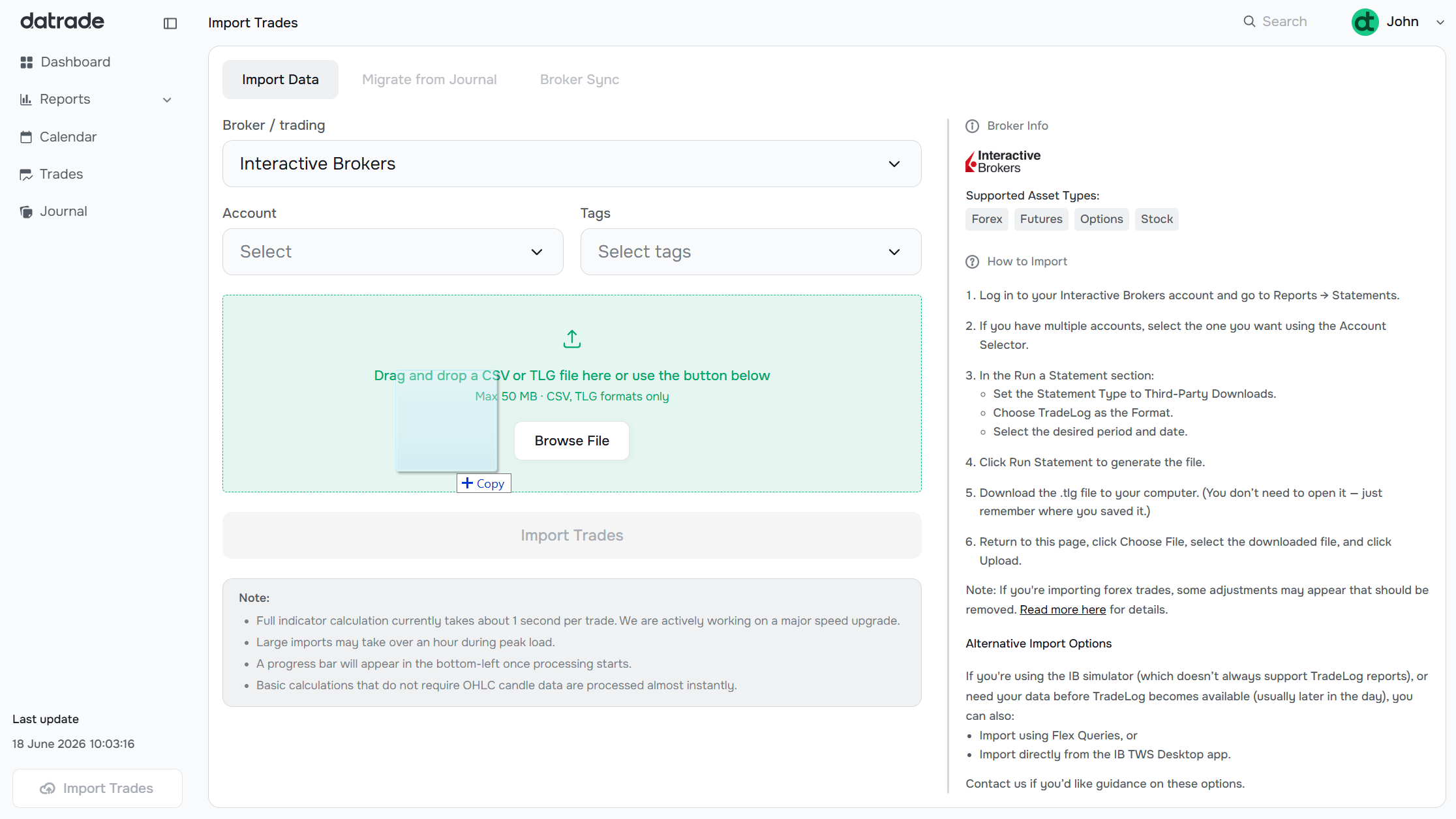
Drag your file onto the upload zone, or click to browse. The file name and size appear below the zone once it's attached.
Step 5 — Click Import Trades
Hit Import Trades. A progress bar appears in the bottom-left corner of the screen while processing runs.
Processing time
Full indicator calculation runs at roughly 1 second per trade. A 500-trade file takes around 8–10 minutes. Large imports may take over an hour during peak load.
Basic stats that don't require candle data (P&L, commissions, holding time) finish almost instantly, so your trades become visible in the Trades view shortly after submitting.
You can navigate away — the import continues in the background.
Have a question?
Let us help!
To get the best response, follow these steps when submitting your request:
Be Clear
Briefly describe the issue and any key details, like the feature used or an error message
Add Context
Explain what you were trying to do and what led to the issue
Attach a Screenshot (Optional)
A visual reference can speed up troubleshooting
We'll review your request and get back to you soon!
Get latest updates
on Datrade
Disclaimer: Datrade is not an investment advisor or signal provider. All market data and analytics are provided for informational purposes only and do not constitute financial advice or trading recommendations. Past performance is not indicative of future results, and no performance outcomes are guaranteed. Users are solely responsible for their trading decisions and actions; Datrade accepts no liability for any losses incurred from use of our data or content. Use of this site constitutes acceptance of our Terms of Service and Risk Disclosure.