
Back
Journal
Overview
Days and Weeks view
Record cards
Writing notes
Exporting a card
Adding a record for a day without trades
Search
Calendar
Detailed view
Back
Journal
Overview
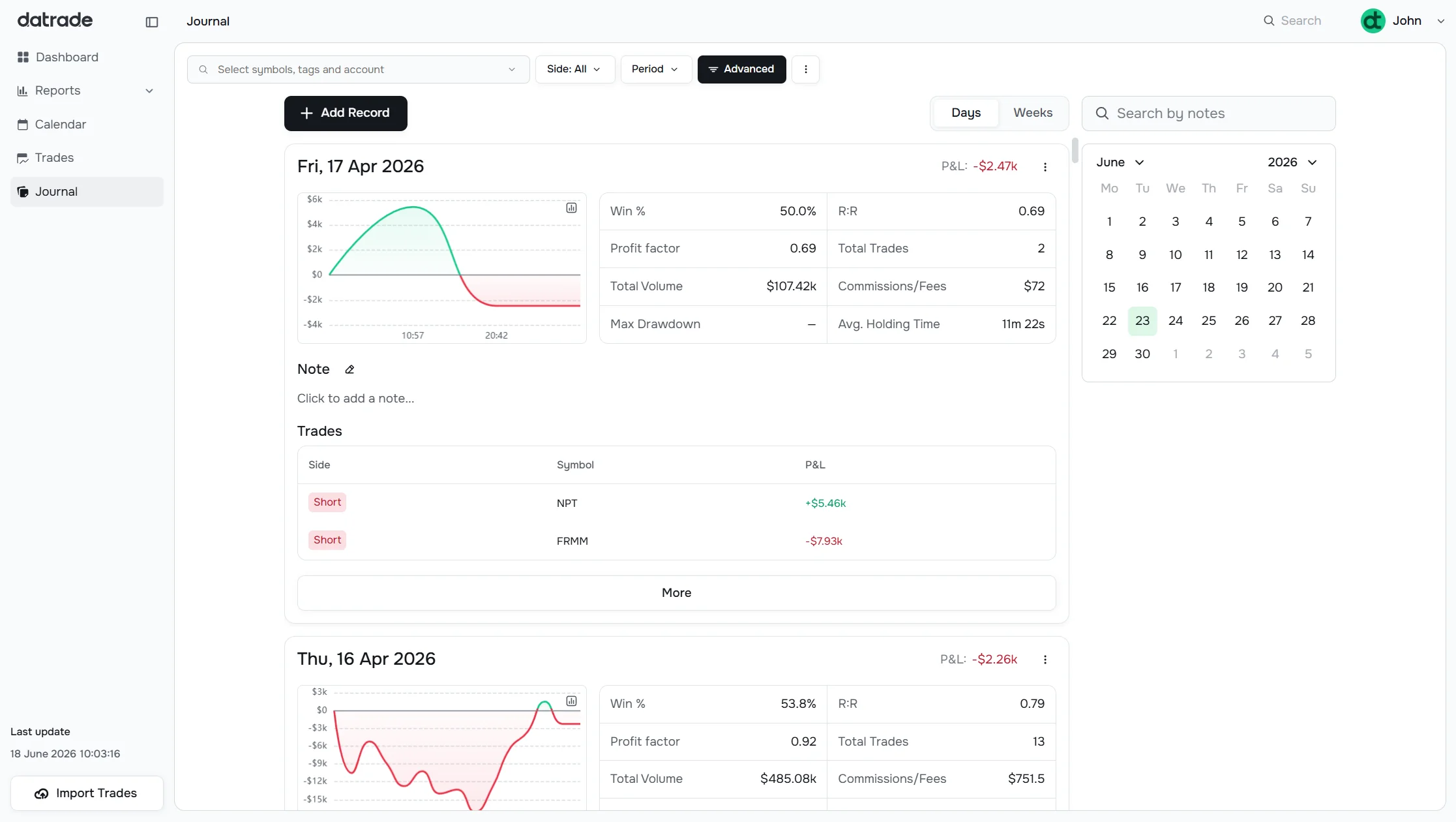
The Journal is a chronological log of your trading activity. Each trading day (or week) gets its own card with performance stats, a running P&L chart, and a note area for your own observations.
Days and Weeks view
Use the Days / Weeks toggle in the top-right of the content area to switch between viewing one card per trading day or one card per trading week.
- Days — each card represents a single calendar day
- Weeks — each card represents a full trading week with a P&L bar chart per day of week
The list is sorted most-recent-first and loads more records automatically as you scroll down.
Record cards
Each card shows:
- Date / period header — date (or week range), total P&L for the period, and the ⋮ menu for export
- Stats row — Win Rate, R:R, Profit Factor, Total Trades, Total Volume, Commissions & Fees, Avg Hold Time
- Chart — in Days view: running cumulative P&L across the day's trades; in Weeks view: a bar chart showing P&L for each day of the week
- Top trades — a compact list of up to 3 notable trades: symbol, side, and P&L. Click Show More to see all trades for that day on a dedicated detail page.
- Note — a text area for your personal journal entry
Writing notes
Click anywhere in the note area to start typing. A note can be up to 200 characters.
Templates: click Add Template (the + button in the note header) to pre-fill the note with one of your saved notes templates. You can also create a new template directly from the dropdown.
Click Save to persist the note. Click Cancel to discard changes. Once saved, the note appears on every card that matches the date/week, including in search results.
To delete a note, open the ⋮ menu on the card and select Delete Note.
Exporting a card
Open the ⋮ menu in the top-right of any card:
- Copy PNG — copies the card as an image to your clipboard
- Download PNG — saves the card as a .png file
- Download PDF — saves the card as a .pdf file
The exported image includes the date header, stats, chart, top trades, and your note.
Adding a record for a day without trades
Click Add Record to create an empty journal entry for any date — even days with no trades. This is useful for writing notes on rest days, market observations, or anything else you want to log.
A date picker opens. Select a day (or a week in Weeks mode) and the new empty record appears in the list, ready for a note.
Search
The Search by notes input in the right sidebar (or top-right on narrower screens) searches the full text of all your saved notes in real time.
Results appear in a dropdown with a snippet of matching text highlighted. Click any result to jump directly to that record in the list.
Calendar
The mini calendar in the right sidebar shows a heatmap of trading days colored by P&L (green = profitable, red = losing). Click any date to scroll the main list to that day's card. In Weeks mode, click a week to jump to that week's card.
The calendar is hidden when the screen is narrower than 900px; in that case a calendar button appears near the Add Record button to open it as a popover.
Detailed view
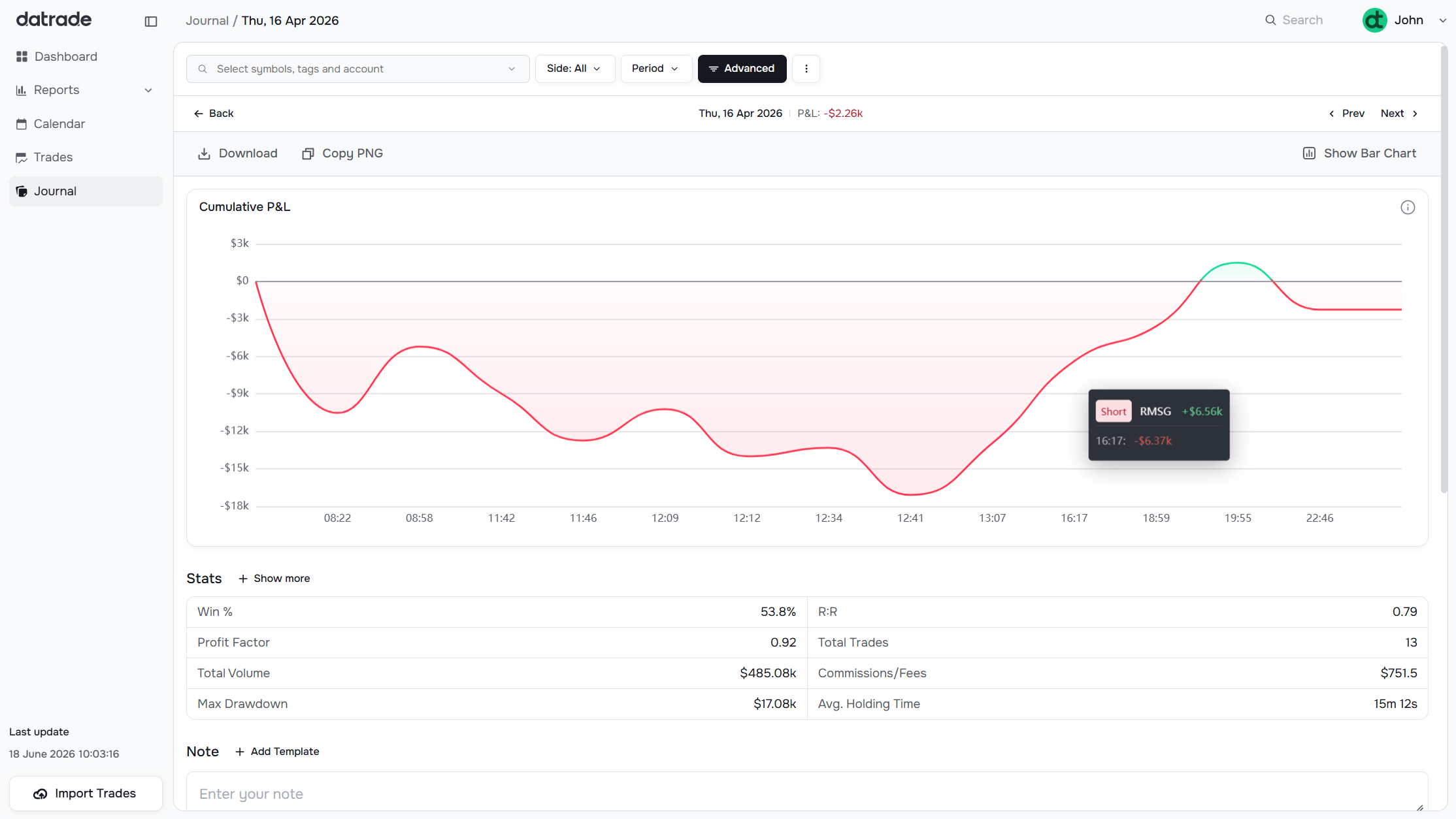
From any card, click Show More to open the full detail page. In Days view it shows all trades for that day; in Weeks view it shows all trades for that week. The detail page includes a trades table with the same columns as the main Trades page, plus a running P&L chart for the selected period.
Have a question?
Let us help!
To get the best response, follow these steps when submitting your request:
Be Clear
Briefly describe the issue and any key details, like the feature used or an error message
Add Context
Explain what you were trying to do and what led to the issue
Attach a Screenshot (Optional)
A visual reference can speed up troubleshooting
We'll review your request and get back to you soon!
Get latest updates
on Datrade
Disclaimer: Datrade is not an investment advisor or signal provider. All market data and analytics are provided for informational purposes only and do not constitute financial advice or trading recommendations. Past performance is not indicative of future results, and no performance outcomes are guaranteed. Users are solely responsible for their trading decisions and actions; Datrade accepts no liability for any losses incurred from use of our data or content. Use of this site constitutes acceptance of our Terms of Service and Risk Disclosure.